Enso · a free help centre theme for Zendesk®
Article tools without custom code
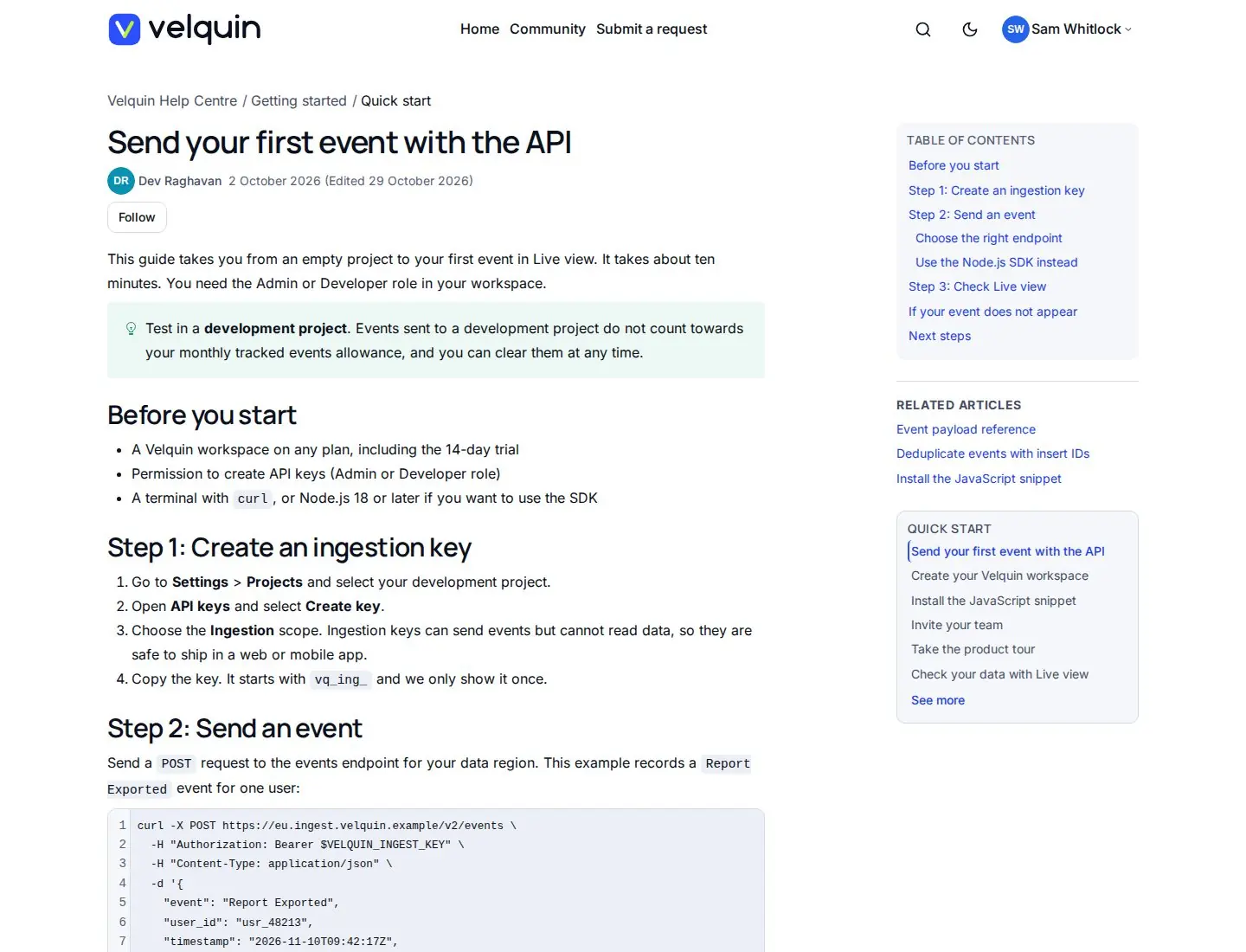
Enso builds a table of contents from each article's headings, adds a copy button and line numbers to code blocks, and offers a link to your request form when a reader votes an article down. Each one is a setting.
Fictional brand: Velquin (software)
Every tool on this page is a setting in the Article Pages or Code Blocks group of the theme editor. Turning one on or off takes a click, not a developer ticket.
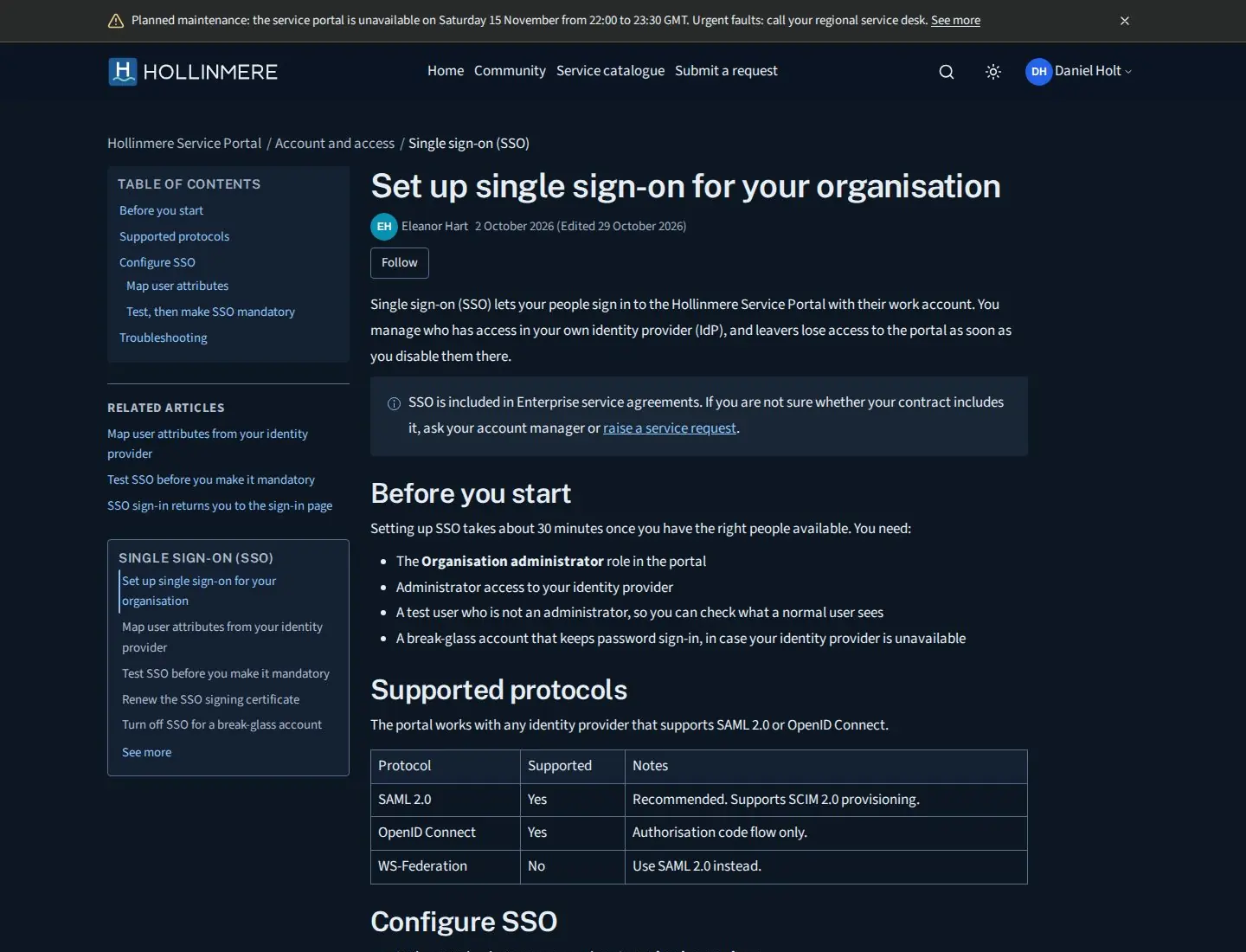
A table of contents from your headings
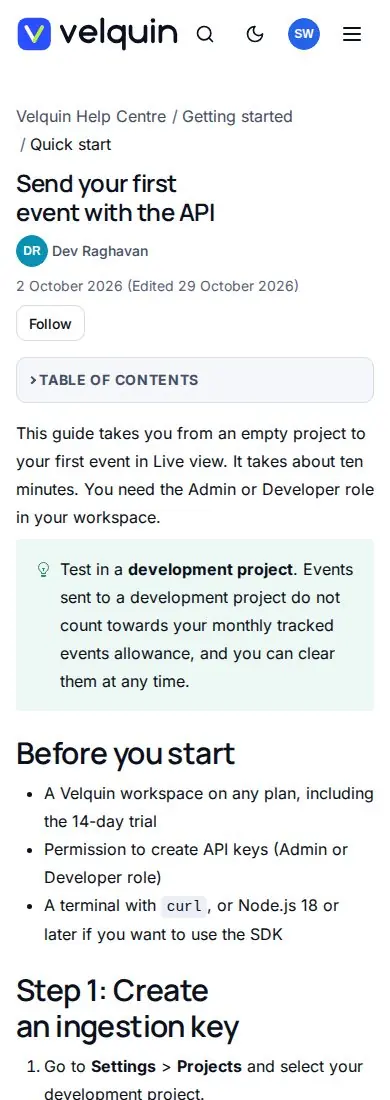
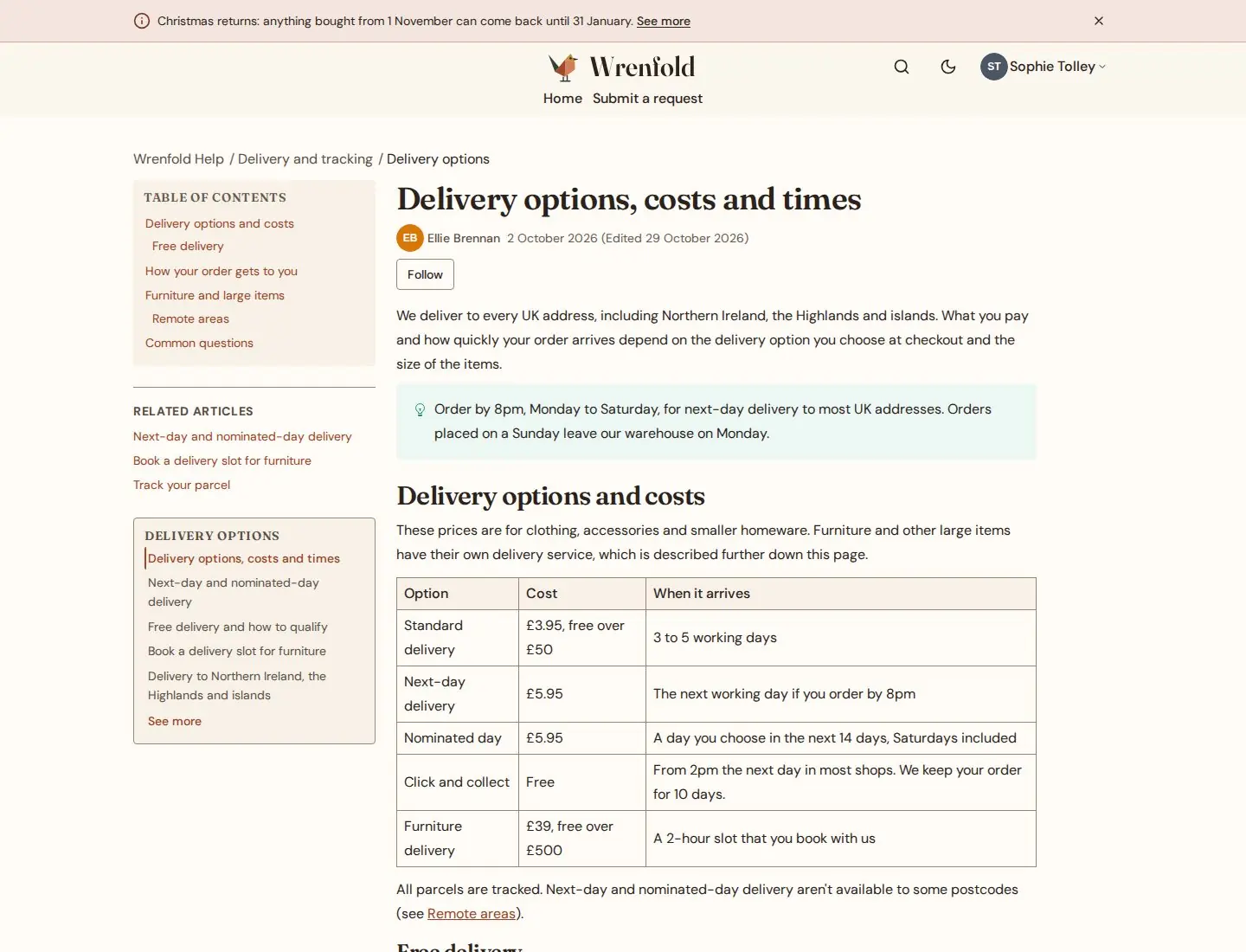
Enso builds the table of contents from each article's H2 and H3 headings, nests H3 under H2, and highlights the section in view as the reader scrolls. On a phone, or with the sidebar under the article, a collapsed copy sits above the article body.
- Writers do nothing extra: the list follows the headings they already use.
- An article without H2 or H3 headings shows no table of contents.
A sidebar where you want it
Sidebar position puts the sidebar on the left, on the right or under the article, or hides it. It holds the table of contents, related articles, recently viewed articles, and previous and next links within the section.
- Each part has its own setting: Show related articles, Show recently viewed and Show section navigation.
- The article footer has a print button and, with sharing on, a copy-link button.
Copy buttons and line numbers for code
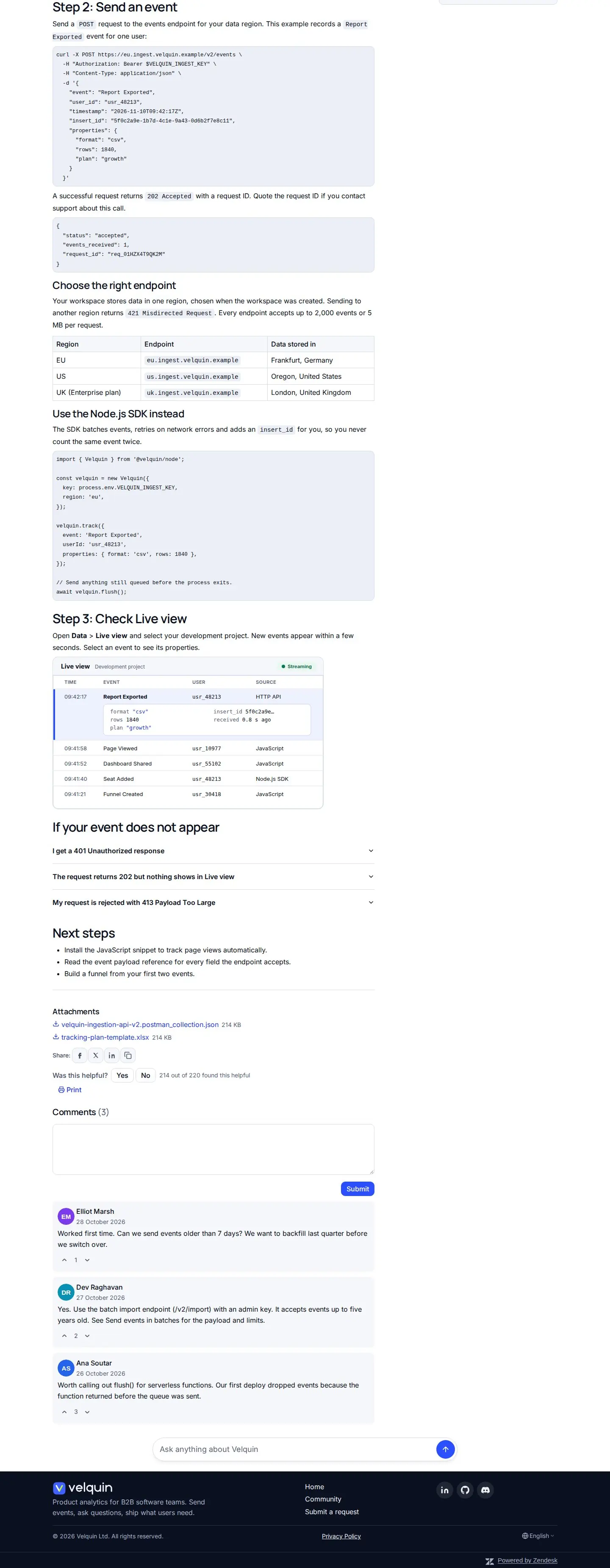
Code block tools gives code blocks in articles a copy button, line numbers, both, or neither. The copy button takes the code only, never the line numbers, and its label changes to "Copied!" when the copy works. Screen readers skip the line numbers.
- On a desktop the copy button shows on hover or keyboard focus. On touch screens it is always shown.
- There is no syntax highlighting: code shows in one colour, as the Zendesk article editor writes it.
A next step when an article does not help
With Show 'not helpful' follow-up panel on, a reader who votes an article down gets a panel right under the vote with a link to your request form. Keyboard focus moves to the panel, and screen readers announce it.
- It needs Show votes on.
- The link goes to the Zendesk request form, not to an AI agent.
- If you have set a GA4 or Google Tag Manager ID, the down-vote also sends an article_feedback_negative event. While the cookie banner is on, the event is sent only if the visitor has already accepted.
Zendesk callouts and accordions, light and dark
Callouts and accordions from the Zendesk article editor render in Enso in light and dark mode. The info callout takes your brand colour. The tip, warning and error callouts and the accordions keep the Zendesk styling.
Limits
- The table of contents lists H2 and H3 headings only. An article without them shows none.
- The table of contents is built by script in the browser. With JavaScript off, there is none.
- Where Zendesk sets no heading id, Enso makes one from the heading text, so editing a heading changes its link.
- Code blocks get no syntax highlighting.
- Recently viewed is stored in the visitor's browser. While the cookie banner is on, nothing is stored until the visitor accepts.
- The follow-up panel needs votes on, and it links to the request form only.
- Only the info callout takes your brand colour.
Questions buyers ask
- Do writers need to do anything for the table of contents?
- No. It is built from the H2 and H3 headings already in the article. Keep headings in order, and the list follows.
- Can I turn the table of contents off?
- Yes. Turn off Show table of contents, or set Sidebar position to Hidden, which removes the sidebar and the table of contents together.
- Does Enso colour code by language?
- No. Enso adds a copy button and line numbers, not syntax highlighting. The Zendesk article editor does not colour code either.
- Can I see how often readers vote an article down?
- Zendesk records the votes on each article. If you have set a GA4 or Google Tag Manager ID, Enso also sends an article_feedback_negative event when the follow-up panel opens; with the cookie banner on, only after the visitor accepts.
- Do Zendesk callouts and accordions work in dark mode?
- Yes. Enso renders them in light and dark mode. The info callout takes your brand colour; the others keep the Zendesk styling.
See it in a demo help centre
The Velquin demo help centre shows these tools on its own articles, including code blocks with a copy button and line numbers.
More Enso features
Free, with help when you need it
The theme is free under the Zendesk Marketplace standard licence. When you need changes beyond settings, or a faster answer, Kanso offers custom builds and paid support.
Install from the Zendesk Marketplace
Free, with a standard licence. Marketplace themes need Guide Professional or above (Zendesk shows this on every listing).
Marketplace listing coming soon
Try a demo help centre
Each demo help centre runs one fictional brand on Enso, set up through settings alone. Click through the pages before you install anything.
Open a demo help centreCustom builds
For changes beyond the 197 settings, Kanso builds a custom version at a fixed scope and price. A custom build stops getting Marketplace updates, so Kanso offers maintenance with it.
About custom buildsSupport
Free: the settings guide and FAQ (being written) and bug reports by email, answered on a best-effort basis. Paid: configuration help, with the response time and price in your quote.
Support optionsZendesk is a trademark of Zendesk, Inc. Kanso CX Ltd is an independent company, not part of Zendesk, Inc., and Zendesk does not provide or support Enso. Wrenfold, Velquin and Hollinmere are fictional brands made to show Enso; any resemblance to real companies is unintended.